How to Check the Shutter Count Before Buying a Used Camera
Four methods by brand — software, manufacturer app, EXIF reading, or internal service menu — and the red flag if the seller says 'I don't know'.
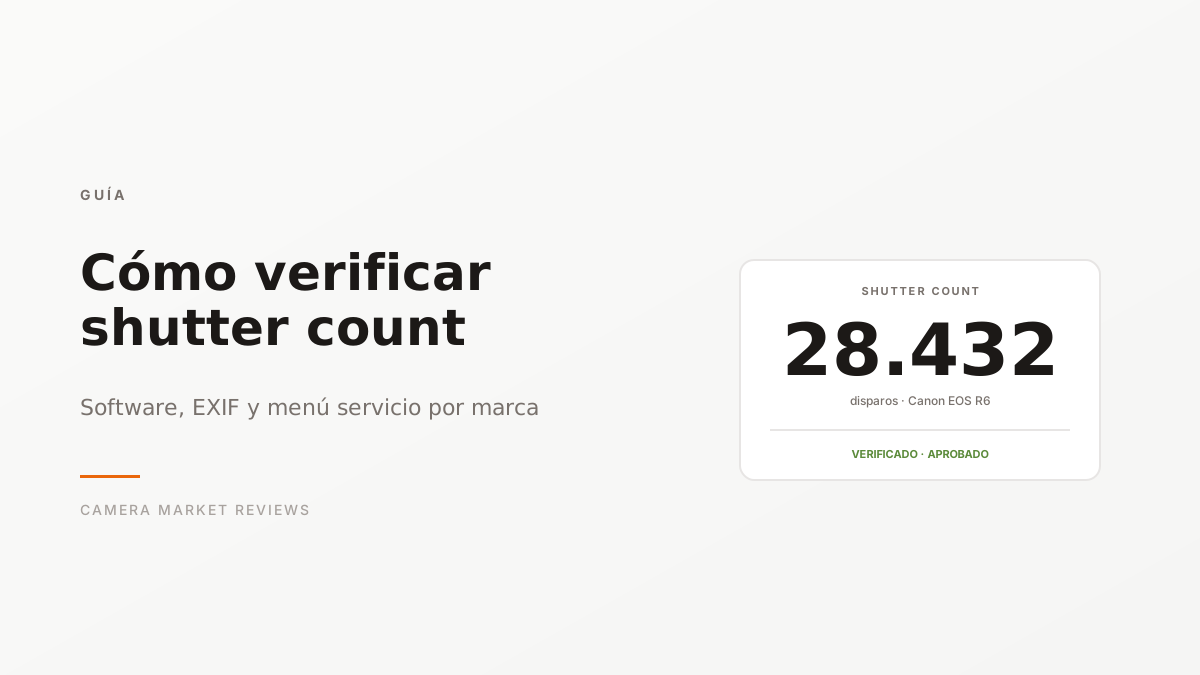
The shutter count is the most important data point when evaluating the true condition of a used camera. Brands like Canon or Sony don’t show it in the normal menu — you need an external method. Here’s each one by manufacturer, with free and verifiable software.
Why This Data Matters
The mechanical shutter has a declared lifespan from the manufacturer (150,000 actuations for mid-range, 300,000+ for professional). The actual number of actuations tells you:
- How many years of heavy use the body has left.
- Whether the price you’re paying reflects the real wear and tear.
- If the seller is being honest about the condition.
A camera that says “lightly used, like new” but has 80,000 actuations is NOT like new. That’s why we check it before any purchase.
Read here how many actuations are too many per model →
Canon (DSLR + Mirrorless)
Method 1: EOSInfo Software (DSLR, up to 2019)
- Download EOSInfo (free, Windows; Mac alternative: ShutterCount for €3).
- Connect the camera to your computer with a USB cable.
- Turn the camera on in PLAY mode.
- Open EOSInfo. It displays the shutter count on screen.
Works on the entire EOS DSLR series (5D Mark III/IV, 6D/6D Mark II, 7D, 80D, 90D, etc.).
Method 2: Canon Camera Connect (Mirrorless R-series)
- Pair the camera with your phone via the official Canon Camera Connect app.
- In the app: Settings → Camera Information → Shutter Release Count.
Works on R5, R6/R6 Mark II, R7, R8, R50. Does NOT work on R3 or R5 Mark II (Canon removed the feature — only accessible at official service).
Method 3: EXIF on Older Cameras (Doesn’t Work on Canon 5D Mark III/IV)
For older Canon cameras, the ShutterCount is hidden in the body and not exported via EXIF. You need dedicated software.
Sony
Method 1: Free Websites with RAW File (Easiest)
- Take a recent photo in RAW format (.ARW) or unedited JPEG (not processed in Lightroom).
- Upload the file to CameraShutterCount.com (free, no registration).
- Read the result.
Works on A7 III/IV/V, A7R IV/V, A6300/6400/6600, A9 II.
Method 2: ExifTool (More Reliable)
exiftool -ShutterCount photo.ARWExifTool is free, cross-platform. Works on practically all Sony Alpha cameras.
Important for Sony
The Sony counter counts mechanical actuations. If the camera has spent a lot of time in electronic shutter (silent shutter), the count can be misleadingly low. Ask the seller about their usage pattern.
Nikon
Universal Method: ExifTool
exiftool photo.NEF | grep ShutterCountOr upload a .NEF file to MyShutterCount.com (free).
Works on ALL Nikon: D850, D750, D7500, Z6, Z7, Z6 II, Z7 II, Z9, Zf, Zfc.
Nikon is the easiest brand to verify — the data is in every photo’s EXIF file.
Fujifilm
Method 1: ExifTool (X-T3 and Later)
exiftool photo.RAF | grep -i shutterWorks on X-T3, X-T4, X-T5, X-H2, X-H2S, X-S10, X-S20, X-Pro3.
Method 2: Service Menu (X-T2 and Earlier)
For X-T1, X-T2, X-T20, X100T and earlier, the method is a key sequence in the service menu:
- Camera off.
- Hold down the DISP/BACK button + turn the command dial up.
- While holding, turn the camera on.
- A service screen appears with ShutterCount.
- Turn off without touching anything else to exit.
It’s safe and doesn’t reset any settings. But ask the seller first — some don’t want you messing with their camera’s service menus.
Pentax
Pentax is the least user-friendly:
- Camera off.
- Hold MENU + INFO simultaneously.
- Turn the camera on without releasing.
- A technical screen appears with shutter count among other data.
Works on K-1, K-1 II, K-3, K-3 II, K-3 III, KP.
Alternatively, ExifTool works on some modern models.
Olympus / OM System
Service menu with a complex sequence:
- Camera off.
- Press Menu + right arrow + down arrow + OK + up arrow.
- Turn on without releasing.
- Service menu appears.
- Navigate to SHUTTER → shows count.
Works on E-M1, E-M1 Mark II/III, E-M5 Mark II/III, OM-1, OM-5.
The Seller’s Red Flag
“I don’t know how many actuations it has” is a red flag in 2026. Five years ago it was acceptable. Today:
- Every method above takes <5 minutes.
- Free software is available for every relevant brand.
- If the seller WON’T or CAN’T verify it, one of two things is happening:
- They don’t know how to read it → ignorance, not malice. Ask them to let you have 15 minutes to do it yourself.
- They know the number and don’t want to say it → high figures that hurt the price. Avoid.
At Camera Market, we verify every unit with professional software (we don’t trust the original seller’s claim) and publish the exact count on each listing. If you’re buying from a private seller, ask them to verify before you transfer any money.
Common Mistakes
- Thinking “like new” means few actuations: a camera can be cosmetically flawless and have 100,000 actuations. Verification is objective; cosmetic condition is subjective.
- Trusting the seller’s self-report: the counter can’t be officially erased (it can be faked with illegal software, but it leaves traces). The external method is the only reliable source.
- Confusing actuations with hours of use: a camera might have 5,000 actuations but have recorded 500 hours of video. For video, the issue is different (overheating, battery).
Checklist Before Transferring Money
- Seller verifies shutter count in your presence (or via WhatsApp video)
- Number matches the listing
- Number is within the acceptable range for the model
- You ask to see a recent unedited photo to confirm (with ExifTool if applicable)
- You ask for a photo of the sensor at f/22 against a white background (check cleanliness)
If all 5 checkboxes are green, the purchase is technically defensible. If one is missing, negotiate the price or move on.
Read also: the complete technical verification process at Camera Market → And if the camera you already bought starts failing →